

Ask around in the WhatsApp community how long it takes to get approved as a Tech Provider, and you get two completely different stories. Some people grind through weeks of rejections and appeals. Some people sail through on a clean first submission. Same Meta, same process, very different experiences.
The gap between those two is mostly preparation, and it is almost never the code. The Cloud API is well documented, Meta hosts it so you are not running infrastructure, and sending a test message takes an afternoon. What actually separates a smooth approval from a slow one is whether you show up with a working integration you can demonstrate, documents that match each other, and an app structured the way Meta expects. Get those lined up before you submit, and the process stops fighting you.
This is a full walkthrough of how to become a WhatsApp Tech Provider, written for founders and product teams who want to onboard other businesses onto WhatsApp rather than just run their own support line. If you only want WhatsApp for yourself, you do not need this role. You need a provider to bring you on, which is what you are about to become for other people.
One caveat worth keeping in mind throughout. Meta renames and reshuffles this part of its platform constantly, and dashboard labels drift between the day a guide is written and the day you follow it. The sequence below holds. The exact button text may not.
What a WhatsApp Tech Provider Really Is
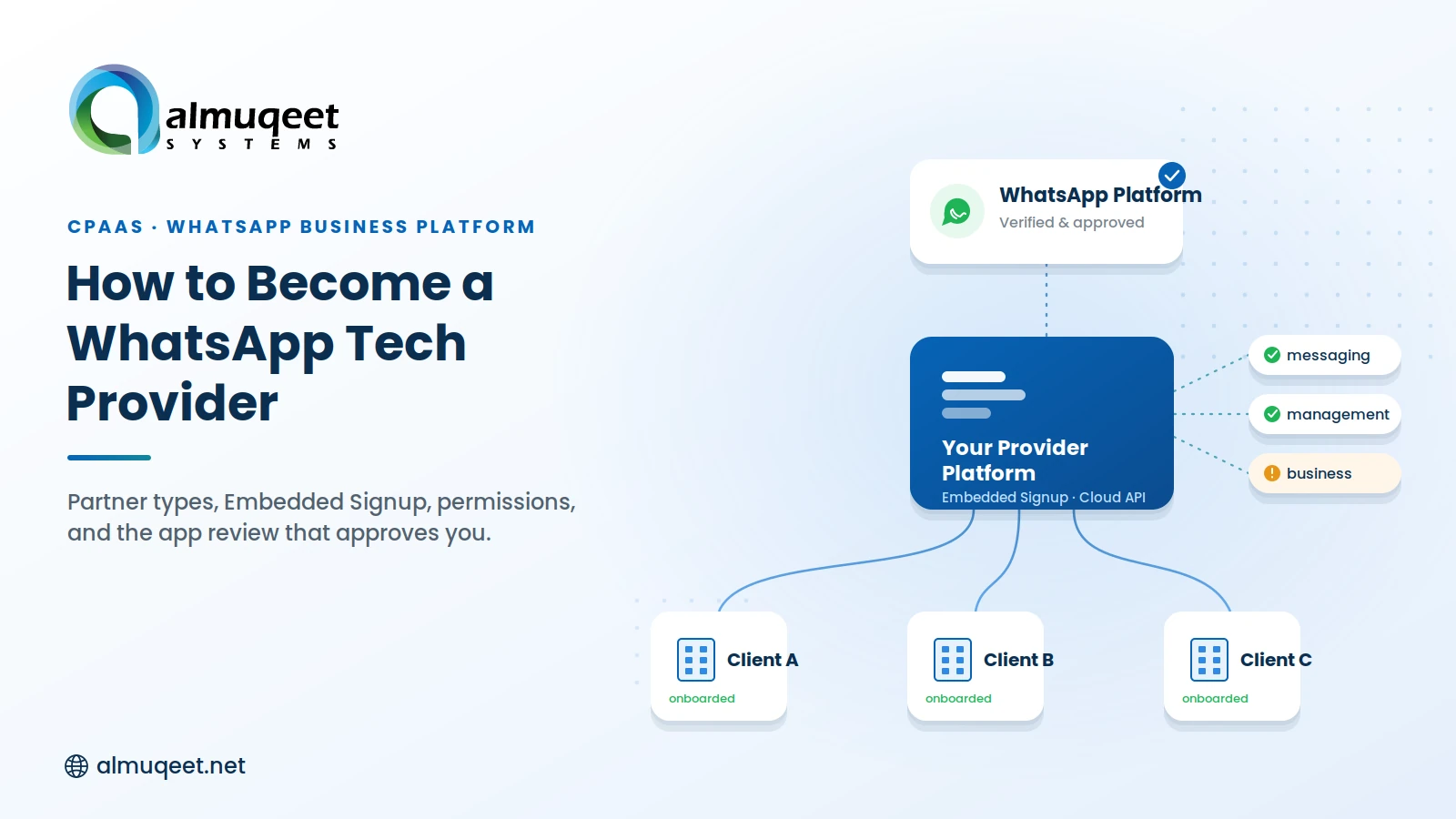
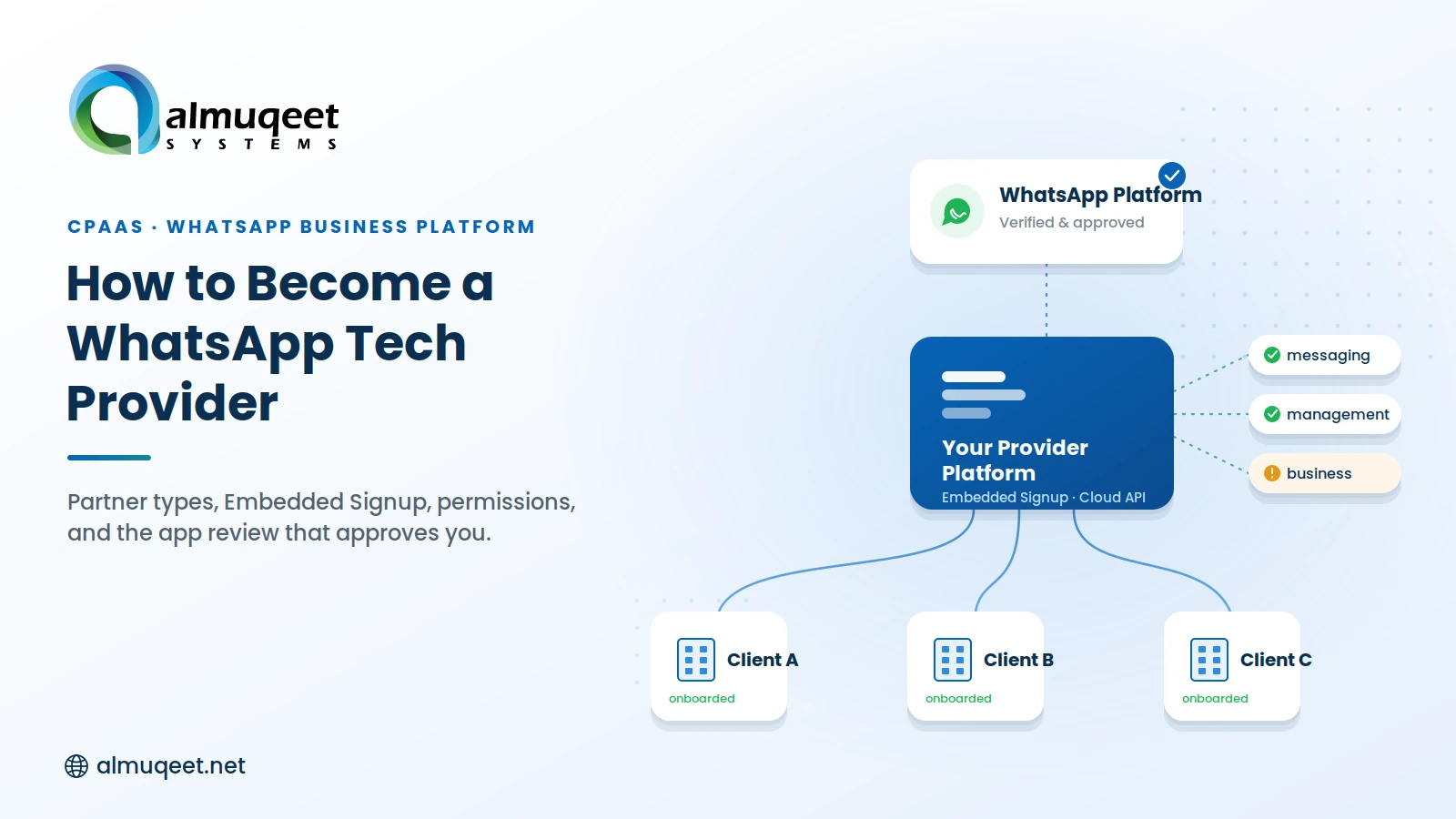
A WhatsApp Tech Provider is a business that builds on the WhatsApp Business Platform and provides that access to other businesses. You hold the technical relationship with Meta, your customers get WhatsApp Business accounts that sit under your structure, and you run the messaging and templates for them.
The older name floating around is BSP, short for Business Solution Provider. Meta retired that term, but the industry never fully let go of it, so you will still see it everywhere in forums and vendor copy. When someone says BSP today, they usually mean the reseller model that Meta now calls a Solution Partner, built on top of the underlying Tech Provider role. The next section untangles those, because the labels get mixed up constantly and applying for the wrong thing costs you a cycle.
The reason the role exists at all is trust. WhatsApp will not let unverified accounts fire notifications and marketing at people, so someone has to vouch for the sending business and keep the platform clean. The Tech Provider is that someone, which is why approval leans more on proving legitimacy and a real use case than on your engineering.
WhatsApp Tech Provider, Solution Partner, or Tech Partner: Know the Difference
Settle this before you touch a settings page. These are not three rungs on a ladder you climb. They are different designations with different business models, and you pick based on what you actually are.
Tech Provider is the technical role. You register, build on the Cloud API, pass review and verification, and you can provide WhatsApp access to other businesses. It is not a badge you apply for in a directory. It is the capability you unlock by setting up and verifying your app, and it is what this guide is about becoming.
Solution Partner is a formal partner designation, and it is the closest successor to the old BSP idea. Solution Partners carry the billing relationship for their clients, typically holding a line of credit with Meta and reselling messaging, and they appear in Meta's partner directory. Getting listed as one means a separate partner application with criteria to meet, not an automatic upgrade from Tech Provider.
Tech Partner is also a directory designation, but for companies whose software plugs into WhatsApp without taking over the client's billing and reselling relationship. Think CRM, chatbot, and analytics tools. The client keeps their own Solution Partner or pays Meta directly, and the Tech Partner's product works alongside that.
The correction worth burning in: Solution Partner is not a higher tier of Tech Provider. Tech Provider is the base technical role almost everyone starts from. Solution Partner and Tech Partner are partner programs you apply into based on your model, and plenty of successful Tech Providers never pursue either badge because the directory listing is not worth the extra application and obligations to them. For most people reading this, you are becoming a Tech Provider. The rest assumes it.
What to Have Ready Before You Apply as a WhatsApp Tech Provider
Line these up first, because each one quietly blocks you, and you usually find the gap only when the process stalls.
Business documentation that matches itself everywhere. Business verification generally wants proof of a real, registered business, commonly a registration certificate plus address proof such as a utility bill or bank statement, and the single thing it checks hardest is consistency. The legal name, the address, and the formatting need to read the same across your documents, your Business Manager, and your website. A mismatch in a single field is enough to send it back. Requirements vary a little by region and business type, so treat this as the usual shape rather than a fixed universal checklist.
A real website on a domain you own, carrying the business name, a contact method, a public privacy policy, and a terms page. Reviewers open the site. A parked page or a temporary link reads as a warning, and the privacy policy specifically gets looked at because you are about to handle other businesses' customer data.
A business email on that domain. The app itself asks for a contact email, and a free webmail address there is a soft negative. A Facebook account for you as the person administering the assets, kept logged in and reachable, since clarification requests and approval notices land there.
And a working integration you can record. This is the part casual guides leave until it is too late, and it carries real weight during review. More on it shortly.
Step One: Set Up the Business Portfolio
Everything attaches to a Meta Business Portfolio, which is the current name for Business Manager. Create one in Meta's business settings if you do not already have a clean one.
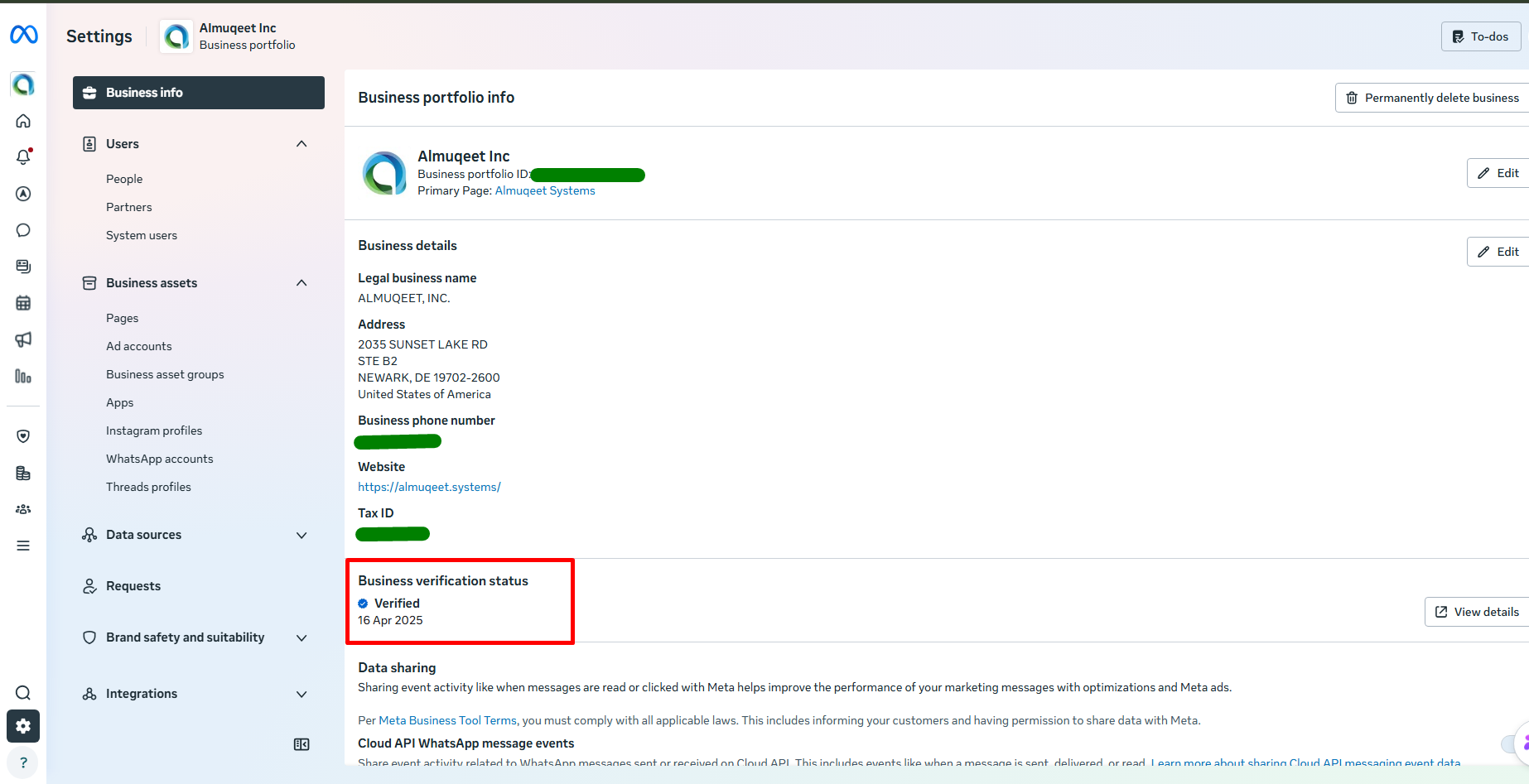
Start fresh where you can. An old portfolio that has run ad accounts for years can carry restrictions or trust problems you cannot see, and importing those into a Tech Provider application is a bad trade for the convenience. A new portfolio tied cleanly to the legal business starts with no baggage.
Enter the name, address, phone, and website exactly as they appear on your documents. Verification effectively reads these character by character, so do not treat them as throwaway fields.
Step Two: Register as a Meta Developer and Build Your App
Move to the developer side, register an account, and create a new app. Choose the business app type, then add the WhatsApp product. Add your privacy policy URL and contact email here, because the app asks for them, and a missing privacy URL is a cheap way to fail.
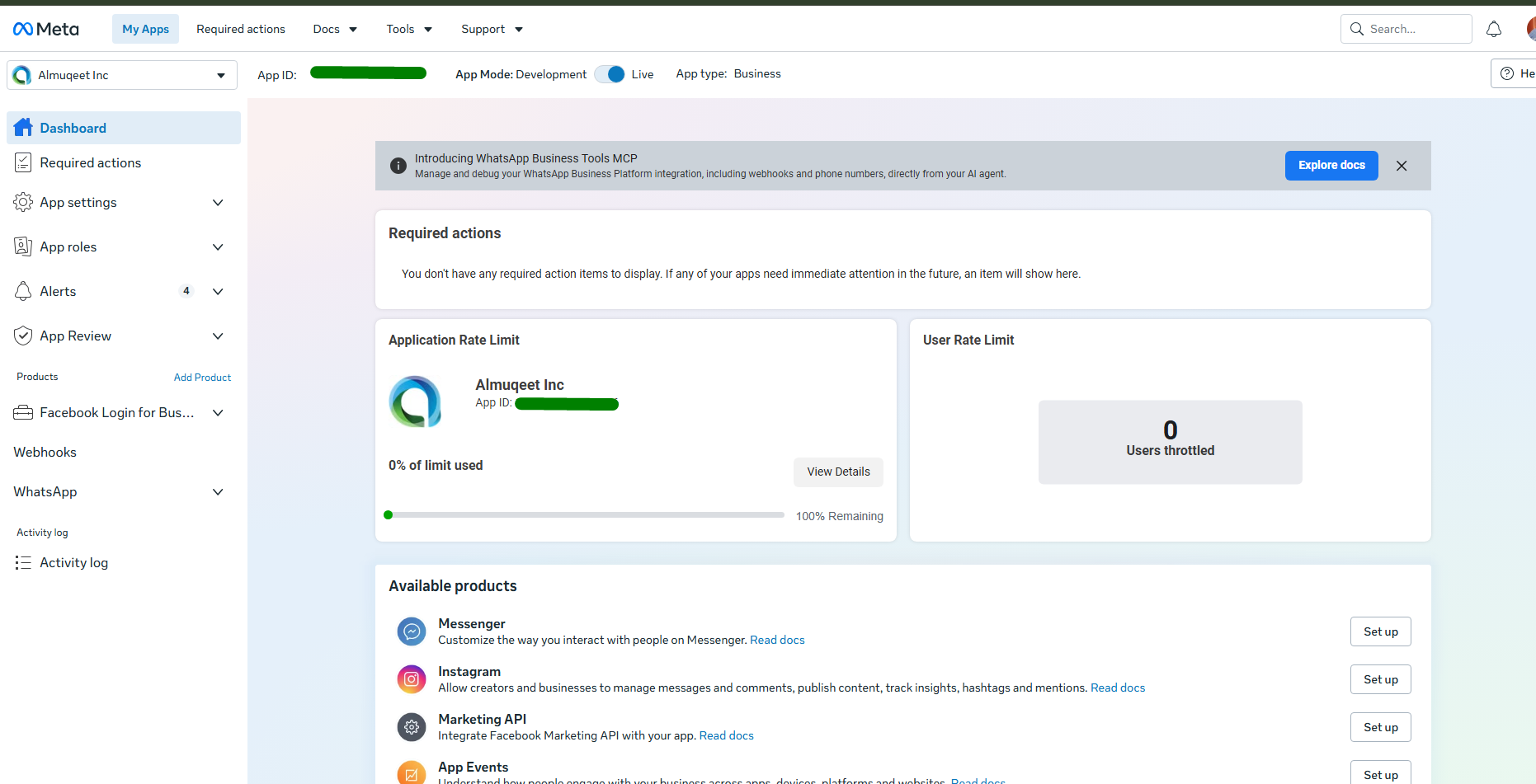
Link the app to your Business Portfolio during setup. An app floating free of a portfolio cannot do what a Tech Provider needs.
Meta gives you a test number and a small message allowance so you can build and confirm the loop before any approval. Send yourself a message, fire a webhook, confirm it works. The sandbox works for everyone, so clearing it proves nothing about approval. It just means you are ready to build the parts that do.
Build on the Cloud API, Not On-Premises
There used to be two ways to connect. The Cloud API, hosted by Meta, and the On-Premises API, which you installed and ran on your own servers. For a new Tech Provider in 2026, there is really only one choice, because Meta wound the On-Premises API down through 2025, and it is effectively retired now.
New integrations run on the Cloud API, which also means you are not maintaining messaging infrastructure yourself. If you come across an older guide that walks through standing up a Business API client on your own machines, it is describing a path that no longer exists. Do not build toward it, and be wary of any vendor still selling an On-Premises setup as current.
Embedded Signup Is How a WhatsApp Tech Provider Onboards Clients
A demo shows a reviewer your product works. Embedded Signup is how you actually bring customers on once you are live, and the two connect, because a strong demo usually shows Embedded Signup running.
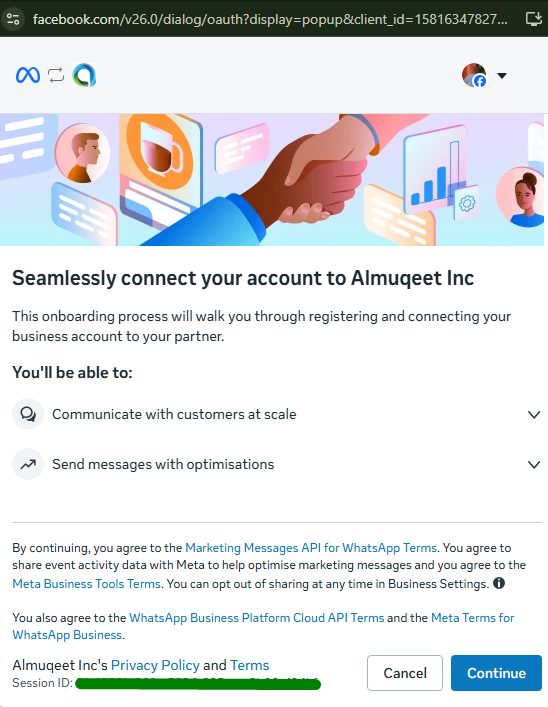
Embedded Signup is the Meta-hosted flow you drop into your own product so a customer can connect their WhatsApp Business Account without leaving your interface. They click a button in your app, a Meta window opens, they log in and move through a few setup screens, and when it closes, your backend holds what it needs to manage messaging for them. Done right, a customer goes from signed up to sending in a few minutes with no manual wiring on your side. Done without it, you are connecting accounts by hand one at a time, which does not scale into a business. What follows is the flow broken into the steps you actually build.
Step 1: Clear the Prerequisites First
Embedded Signup will not run on an app that has not earned the right to run it. Before you build the flow, your app needs advanced access approved for the three permissions it uses, your business needs to be verified, and your app needs Facebook Login for Business available on it, since Embedded Signup is built on top of that login product rather than being a standalone widget.
If you try to wire up the flow before app review and business verification are through, it will fail in ways that look like code bugs but are actually permission gates. Get the approvals done first, then build.
Step 2: Create a Facebook Login for Business Configuration
Inside your app, you create a login configuration that bundles together the permissions you are requesting and the assets the customer will connect. This configuration gets an ID, and that ID is what your frontend hands to Meta when it launches the flow.
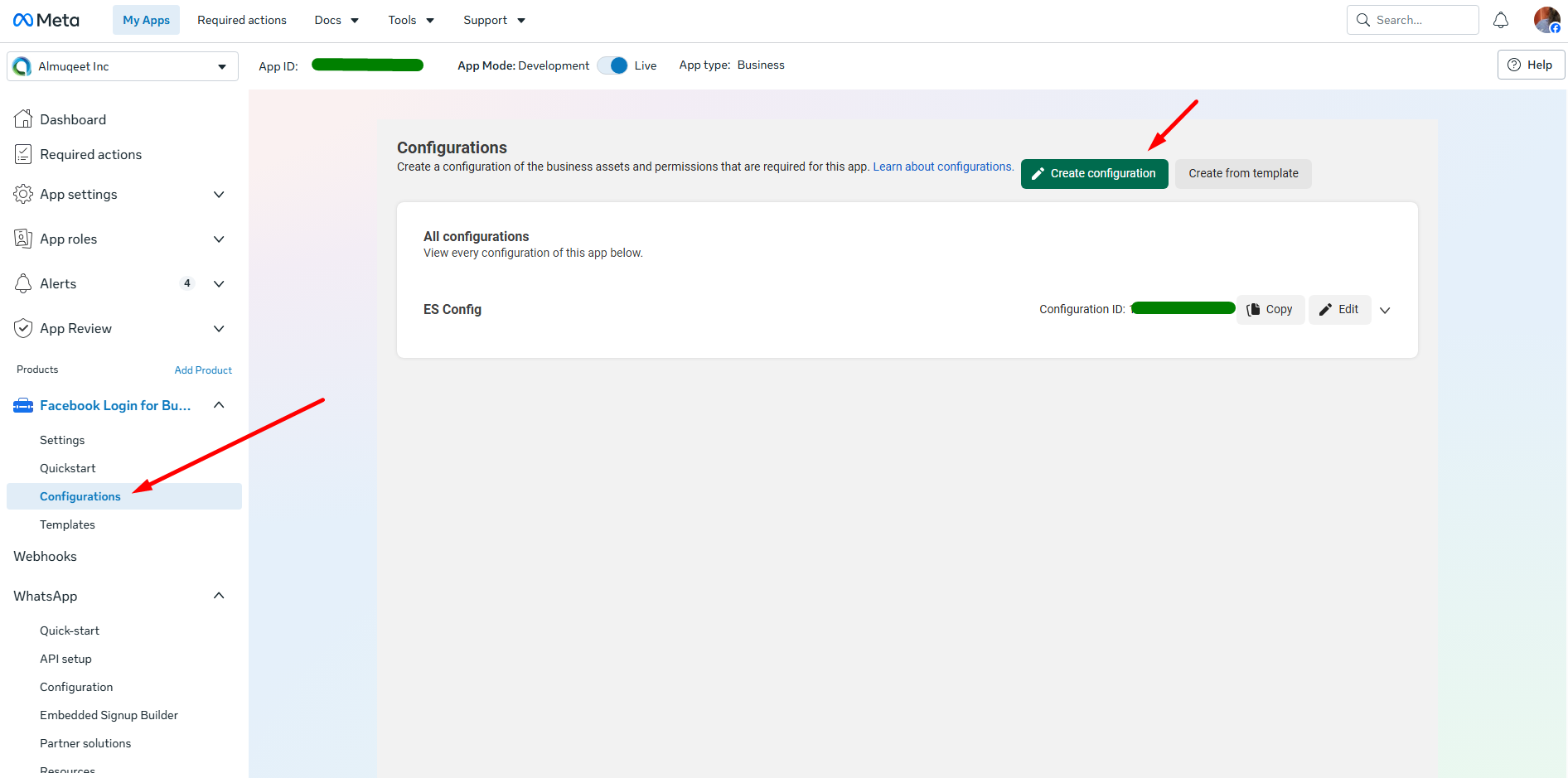
The configuration is where you declare that this login is for WhatsApp onboarding specifically, so the customer sees the WhatsApp setup screens rather than a generic login. Set it up once, reference its ID everywhere you launch the flow.
Step 3: Add the Facebook JavaScript SDK to Your Product
The window that opens for your customer is launched client-side through Meta’s JavaScript SDK. You load the SDK on the page where your connect button lives and initialise it with your app ID.
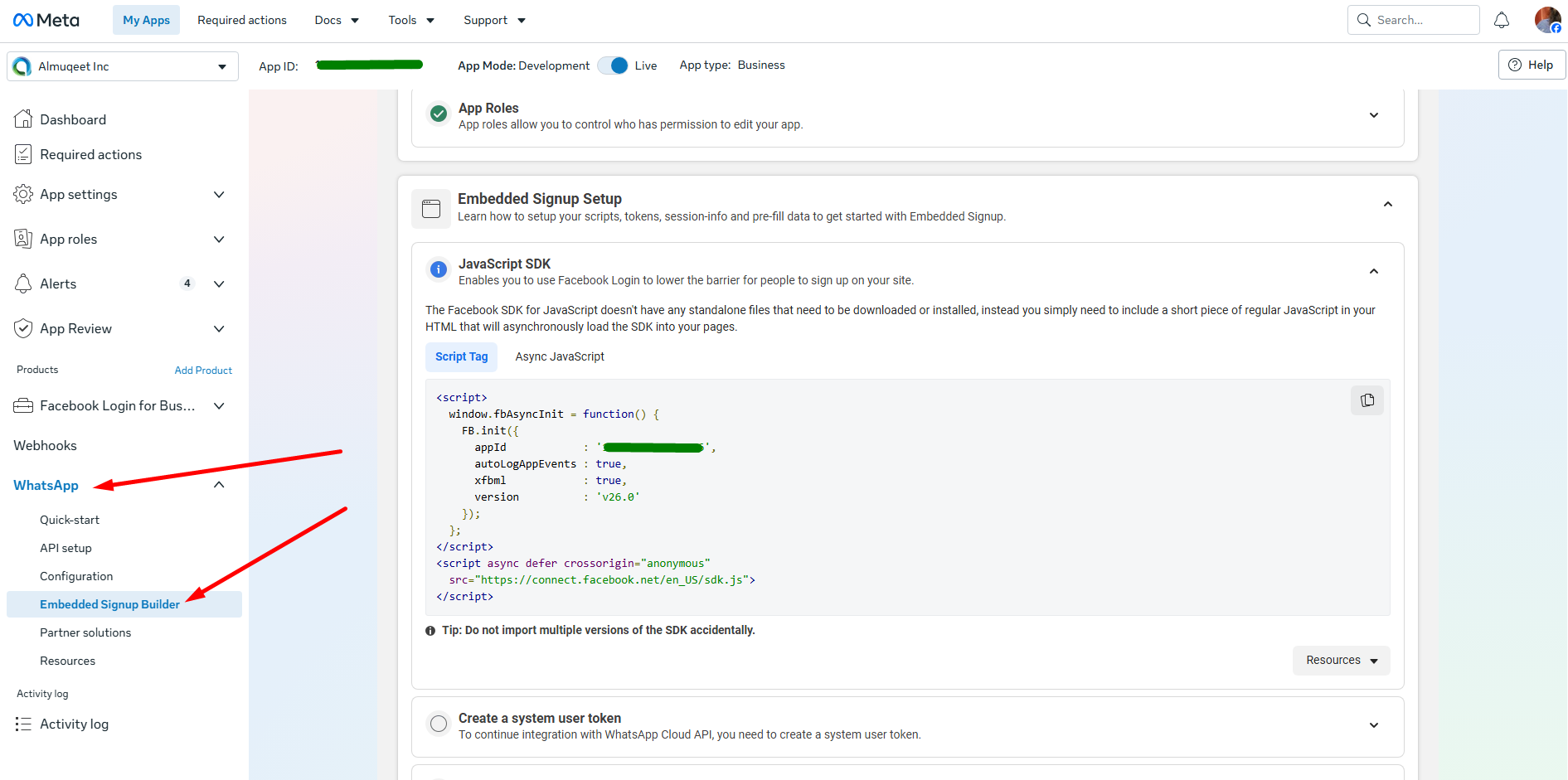
This is also where you set up a listener for the messages Meta posts back during the flow, because some of the information you need does not come back as a simple redirect. It arrives as an event while the window is open. Miss the listener, and you lose half the result.
Step 4: Launch the Flow From Your Connect Button
When the customer clicks connect, you call the login function with your configuration ID and tell it you want an authorization code back rather than a token directly. You pass a small setup object alongside it to tell Meta this is a WhatsApp Embedded Signup launch.
Keeping the token exchange server-side is the whole point of asking for a code instead of a token here. The browser never touches the long-lived credential. It only ever handles a short-lived code that is useless without your app secret.
Step 5: Let the Customer Walk Through the Meta Screens
This part is Meta’s, not yours, and that is deliberate. Inside the hosted window, the customer logs in, then selects or creates the Business Portfolio this WhatsApp account will live under, selects or creates the WhatsApp Business Account itself, and adds the phone number they want to message from. They verify that number by code, the same way anyone verifies a number.
Your job during these screens is to stay out of the way. The customer is granting your app access to their assets through Meta’s own interface, which is exactly why reviewers and customers trust the flow. You are not asking them to hand you a password. Meta is brokering the access.
Step 6: Capture the Code and the Session Details
Two things come back when the flow completes, and you need both.
The authorization code arrives through the response to your login call. Separately, the session information, which includes the identifier for the WhatsApp Business Account the customer just connected and the identifier for the phone number they set up, arrives through that message event listener you registered in step three. People who only capture the code end up approved but blind, holding access with no idea which account or number it points at. Catch both, and pass them to your backend together.
Step 7: Exchange the Code for a Token on Your Server
On your backend, you trade the authorization code for a business access token by calling Meta with the code, your app ID, and your app secret. That token is what lets your platform act on the customer’s WhatsApp Business Account going forward.
Store it securely and tie it to that customer’s record alongside the account and phone number identifiers from the previous step. This token is the credential the rest of your platform runs on for that client, so treat it the way you would treat anything that can send messages and spend money.
Step 8: Subscribe to Webhooks and Register the Number
Access on its own does not make messages flow. You subscribe your app to the customer’s WhatsApp Business Account so that inbound messages and delivery statuses start arriving at your webhook endpoint, and you register their phone number on the Cloud API, which usually means setting a two-step verification PIN for it.
Once the webhook subscription is live and the number is registered, the connection is real in both directions. Outbound messages send, and inbound replies and statuses land where your platform can see them.
Step 9: Confirm, Store, and Hand Back Control
The last step is the unglamorous one that keeps your support queue short. Confirm the number is in a good state, store everything against the customer, and show them in your own interface that they are connected and ready. A customer who finishes Embedded Signup and then stares at a screen that does not acknowledge it will open a ticket within the hour.
At this point, the customer is onboarded and sending, and you did not touch their account by hand once.
The Permission Most WhatsApp Tech Providers Get Wrong
Here is the detail people trip on, and it is worth its own heading because it causes more stuck onboarding flows than anything else.
To make Embedded Signup work, your app needs more than the two messaging permissions. The obvious two, whatsapp_business_management and whatsapp_business_messaging, cover managing and sending on the WhatsApp account. But the flow above, where a customer shares their Business Portfolio and WhatsApp Business Account with your app, depends on a third permission, business_management. That is the one that lets your app read and manage the business assets the customer hands over during signup.
The failure looks like this. A team requests the two whatsapp_* permissions, passes review, builds the flow, and then watches Embedded Signup refuse to complete or come back missing the account access it should have granted. They go hunting through their SDK code for the bug. The bug is not in the code. The app was never granted the permission that lets it touch the shared business assets in the first place.
So if you are building the onboarding flow, you are requesting three permissions, not two. Add business_management to your App Review submission from the start, and demonstrate it in your demo like the others, so your ask and your evidence line up.
The Demo That Helps WhatsApp Tech Providers Pass Review
Meta does not approve on a written description alone, so a reviewer wants to watch your platform work. One widely shared account of getting approved put the demo video at the centre of the whole thing, and while that is one person's experience rather than a guaranteed rule, it generalises well. A clear recording of a functioning flow reliably moves things along.
Build a small but genuine interface that demonstrates real business communication. A lightweight CRM style screen is the common approach. It does not have to be your finished product, but it does have to actually function. Connect a WhatsApp Business number, send and receive messages, show a template message in action, and walk through a simple support conversation.
Including an opt-out for the recipient and a path to reach a human are good signals to show. They tell a reviewer you are building responsible communication rather than a blast tool, and they tend to smooth the review. Treat them as strong practice that helps your case, not as a single hard gate that fails you on absence, since how heavily any one element weighs varies with the reviewer and your overall use case.
Then record it. Keep it short, a few minutes is plenty, and show the steps from onboarding a business through a message going out and a reply coming back. Skip the marketing voiceover and the mock screens that do not do anything. Reviewers are not grading production quality. They are confirming the thing works.
Permissions and App Review for WhatsApp Tech Providers
In the app dashboard, go to App Review and request advanced access to the permissions you need. For a Tech Provider running Embedded Signup, that is whatsapp_business_management, whatsapp_business_messaging, and business_management. If you request only the first two, your messaging works but your onboarding flow does not, which is the quiet failure described above.
Attach your demo video, then write the reviewer plain instructions for understanding and testing your app. Walk them through how a business onboards, how it sends a template, and how inbound messages arrive. Clarity does real work here, because most rejections at this stage are confusion rather than judgment, and a confused reviewer defaults to no.
One rule that sinks applications: do not request a permission your video does not show in use. Meta notices the distance between what you are asking for and what you demonstrated, and it counts against you. Show what you ask for, ask for what you show.
Business Verification for a WhatsApp Tech Provider
Alongside review, you confirm the business. Submit your registration certificate, address proof, and business phone number, and let Meta cross-check against public records where it can.
The failures here are almost all mismatches. A legal name formatted differently than the registration shows. An address on the utility bill that does not match the portfolio. A phone number Meta cannot confirm. None of it is a verdict on your business. It is a matching exercise, and you win it by making every detail boringly identical across documents, portfolio, and site.
A note on order, since different writeups describe different sequences. Some people clear app review before verification finishes, some hit verification as the first wall, and Meta has shuffled this flow more than once. Both are required, and they overlap, so do not panic if your sequence does not match someone else's. Finish both.
The Final Access Check Before a WhatsApp Tech Provider Goes Live
Toward the end, you confirm that your app will be used for legitimate business communication rather than bulk messaging or spam. Depending on when you go through it, this has lived in app settings as a distinct access step and has also overlapped with the advanced access review, because Meta has relabeled and rebundled it over time. Do not expect it to look exactly like any single screenshot you have seen.
Treat it as a consistency check rather than a fresh obstacle. If the rest of your application tells one honest story, a coherent use case, a demo of responsible messaging, a business that checks out, this falls in line with all of it. The only applicants who struggle here are the ones whose earlier material hinted at blast sending, because this is where that hint comes due. Keep the whole submission consistent, and it closes without drama.
Once this and your other steps are complete, Meta approves the app, and you can start bringing real businesses on.
How Long Becoming a WhatsApp Tech Provider Takes
Plan for weeks, not days. You will find individual success stories claiming a two-day turnaround, and they are real, but they are the exception rather than something to build a plan around.
Each piece runs its own queue. Business verification can clear quickly or drag for a couple of weeks, longer if a document bounces and you appeal. App review runs from a few days to a couple of weeks depending on how clear your submission is and how backed up the queue is. The steps overlap, so a well-prepared applicant often compresses the whole thing into a few weeks while an improvised one stretches it out across rounds of rejection.
The only variable you control is how many return trips you force. Matching documents, a working integration, a clear demo, and live privacy and terms pages keep you out of the slow lane. Meta's raw processing speed is not yours to influence, so put the effort into the part that is.
Mistakes That Sink WhatsApp Tech Provider Applications
The short version of everything above, roughly in order of how much damage each one doesNo real demo, or a demo that is marketing talk instead of a working flow. A reviewer approves what they can watch function.
Requesting permissions you did not demonstrate. The gap between your ask and your evidence reads as a red flag.
Requesting only the two messaging permissions and skipping business_management, then wondering why Embedded Signup will not complete. A privacy policy or terms page that is missing or not public. Keep both live on your real domain.
A temporary URL, a localhost link, or a parked domain instead of an official site. Reviewers open these, and a dead presence undermines everything else.
Document details that do not match your Business Manager. Same name, same address, same formatting, everywhere. Going quiet when a reviewer asks for clarification. Fast replies keep you in the active queue. Slow ones let the application cool.
Almost none of these are about a weak product. They are about a loose application in the specific ways Meta is trained to catch.
Where WhatsApp Fits Next to Your Other Channels
Becoming a WhatsApp Tech Provider rarely makes sense as a standalone move. The businesses you onboard will want SMS when WhatsApp is not the right fit, voice for verification, and increasingly RCS as it matures on Android. Running WhatsApp as one lane inside a wider offering is usually a stronger position than treating it as a silo, and most serious providers unify it anyway.
If you are weighing the platform layer under all of this, the complete guide to CPaaS platforms covers how these channels get pulled behind one API and one billing relationship, and running WhatsApp as a channel on a full CPaaS platform is how most providers avoid rebuilding the same plumbing per channel. The channel that keeps coming up in the same breath as WhatsApp is RCS business messaging, which closes much of the richness gap for Android users. It also pays to be clear-eyed about where WhatsApp wins and where it does not, since A2P SMS still outperforms OTT messaging for a lot of time-critical delivery, even as WhatsApp leads on conversation. For the longer bet on which channels to build around, the future of A2P messaging is the read, and because every market you onboard into has its own consent rules, the global SMS compliance picture is one to understand before you promise a client you can send anywhere.
Frequently Asked Questions
What is a WhatsApp Tech Provider?
A WhatsApp Tech Provider is a business that builds on the WhatsApp Business Platform and provides that access to other businesses, managing their WhatsApp accounts and messaging. It is the base technical role, formerly caught under the old term BSP.
What is the difference between a Tech Provider, a Solution Partner, and a Tech Partner?
Tech Provider is the technical role you unlock by building and verifying your app. Solution Partner is a directory designation for resellers who carry the client billing relationship, the closest successor to the old BSP. Tech Partner is a directory designation for software that plugs into WhatsApp without taking over billing. The partner badges are not upgrades of Tech Provider, they are separate programs you apply to.
What is Embedded Signup and why does it matter?
Embedded Signup is the Meta-hosted flow you add to your product so customers can connect their WhatsApp Business Account from inside your interface. It is what lets a Tech Provider onboard businesses at scale instead of wiring up each account by hand.
Which permissions does a WhatsApp Tech Provider need?
For a provider running Embedded Signup, three: whatsapp_business_management, whatsapp_business_messaging, and business_management. The third is required for Embedded Signup to read and manage the client's shared business assets, and skipping it is a common reason onboarding breaks.
Can I still use the On-Premises API?
No, not for a new build. Meta wound the On-Premises API down through 2025 and it is effectively retired, so new Tech Providers build on the Cloud API, which Meta hosts.
How important is the demo video?
It helps a lot. Meta wants to see your platform actually work, and a short, clean recording of a functioning flow is a reliable way to move review along. It is strong practice rather than a single guaranteed pass or fail, so pair it with the rest of a tidy application.
How long does it take to become a WhatsApp Tech Provider?
Plan for weeks rather than days. Business verification and app review each run their own queues and overlap, a prepared applicant can compress the whole thing into a few weeks, and the timeline stretches with every round of rejection. Fast approvals exist but are not something to count on.
Do I need a registered company to become a WhatsApp Tech Provider?
In practice, yes for most applicants, because business verification generally asks for proof of a registered business such as a registration certificate and address proof, matched to your Business Manager details. Exact requirements vary by region and business type, so confirm what applies to you.
What is the final access check?
A confirmation that your app is for legitimate business communication rather than bulk messaging or spam. Meta has relabeled and rebundled it over time, so it may appear as its own step or fold into the advanced access review. It is mainly a consistency check against the use case you already presented.
Share this post